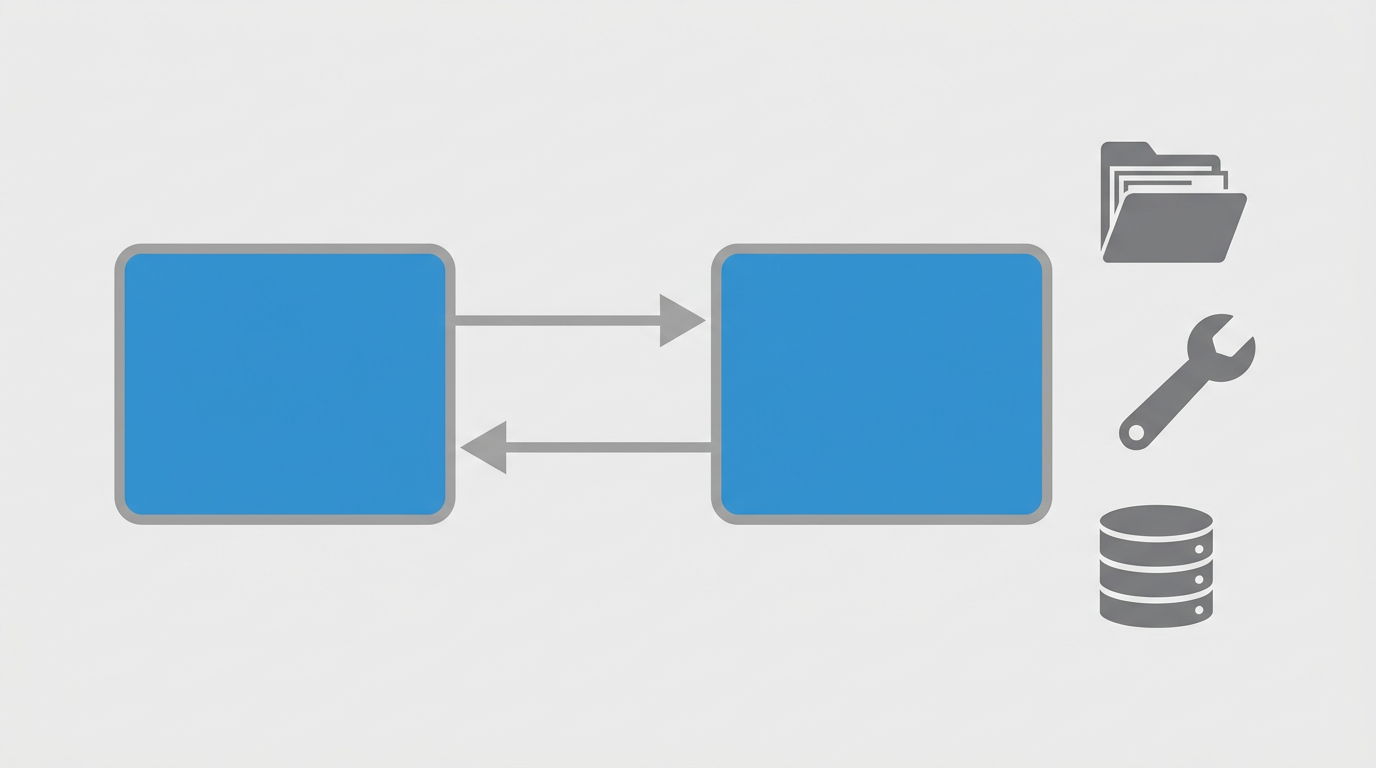
A few months ago I started noticing that Claude Code could search the web, query Jira, and trigger background tasks without me switching context. Not because it has those abilities built in, but because of a protocol called MCP. This post explains what MCP actually is, how the architecture works, and how to wire it up in Claude Code. Next time I’ll walk through my own setup: which servers I use, how I store credentials, and what I’ve learned after running it daily.
What MCP is
MCP stands for Model Context Protocol. It is an open standard, published by Anthropic, that defines how an AI assistant can communicate with external services. Think of it as a common language for tool integrations.
Before MCP, every tool integration was a one-off. An AI needed custom code to talk to GitHub, different custom code to query a database, different custom code again to list files. MCP replaces that with a single protocol both sides implement. The AI side becomes the client. The tool side becomes the server. They speak the same language.
The analogy that works for me: MCP is to AI assistants what LSP (Language Server Protocol) is to code editors. LSP let every editor get syntax highlighting and autocomplete for every language by agreeing on one protocol. MCP does the same for AI tool access.
Architecture
Claude Code acts as an MCP client. When you configure an MCP server, Claude Code connects to it at startup and asks: “What can you do?” The server responds with a list of its capabilities. From that point, whenever a task needs something the server offers, Claude Code can call it.
graph LR
    A["Claude Code
MCP Client"] -->|"initialize
list tools"| B["MCP Server"]
    B -->|"tool list
capabilities"| A
    A -->|"tool call
{ name, args }"| B
    B -->|"tool result
{ content }"| A
The connection happens over one of two transports:
Stdio connects Claude Code to a locally running process via standard input/output. You start a server process, Claude Code forks it and pipes to it. Good for local tools, simple to debug.
HTTP connects to a remote server over HTTPS. Claude Code sends requests, the server responds. Good for hosted services and anything that needs to run persistently.
There’s also SSE (Server-Sent Events), but it’s deprecated and not worth setting up for new servers.
Each MCP server has a lifecycle:
- Client connects and sends
initializewith the protocol version and client info - Server responds with its info and capabilities
- Client sends
initializedto confirm - Normal operation: client calls tools, server executes and returns results
sequenceDiagram
    participant C as Claude Code
    participant S as MCP Server

    C->>S: initialize (protocol version, client info)
    S-->>C: server info + capabilities
    C->>S: initialized
    Note over C,S: Connection ready

    C->>S: tools/list
    S-->>C: [{ name, description, inputSchema }, ...]

    C->>S: tools/call { name: "read_file", arguments: { path: "/tmp/data.txt" } }
    S-->>C: { content: [{ type: "text", text: "..." }] }
The three primitives
MCP servers expose three types of things: Tools, Resources, and Prompts.
Tools are callable functions. The server defines them with a name, a description, and a JSON Schema for the input. The client calls them with arguments and gets a result back. Most of what you’ll actually use in day-to-day work is tools: search the web, query a database, list files, post a message.
Resources are data the server exposes for reading. A resource has a URI (like file:///home/user/config.json or db://mydb/users) and optional metadata. The client can list available resources and read their content. Resources are good for giving the AI read access to something without making it a full tool call.
Prompts are reusable prompt templates the server defines. The client can list them and invoke them with arguments, getting back a structured message. Less commonly used, but useful if you want the server to define how certain tasks should be approached.
graph TD
    S["MCP Server"] --> T["Tools
callable functions"]
    S --> R["Resources
readable data"]
    S --> P["Prompts
reusable templates"]
    T --> T1["read_file(path)"]
    T --> T2["search(query)"]
    T --> T3["create_issue(title, body)"]
    R --> R1["file:///project/README.md"]
    R --> R2["db://mydb/schema"]
    P --> P1["code-review(diff)"]
In practice, most third-party MCP servers are almost entirely tools. Resources and prompts are there in the spec if you’re building your own server, but the ecosystem defaults to tools for almost everything.
Configuring MCP in Claude Code
There are two ways to add MCP servers to Claude Code: the CLI and a config file.
Via CLI
| |
The CLI stores the config in ~/.claude.json (user-level, applies to all projects) or in .claude/settings.json (project-level).
Via .mcp.json
For project-level configuration, I prefer a .mcp.json file at the project root. It’s clearer, version-controllable (with secrets excluded via .gitignore), and easy to share the structure without credentials.
| |
That’s the minimum for a stdio server. For HTTP servers:
| |
And a more complete example with multiple servers using both transports:
| |
When Claude Code starts in that project directory, it reads .mcp.json, connects to all configured servers, and the tools they expose become available in the session.
A working example: filesystem server
The filesystem MCP server is a good first one to try. Install and run it:
| |
Add it to .mcp.json:
| |
Start a Claude Code session. You can now ask it to list files, read file contents, or search within the configured directory. The tools it exposes include read_file, write_file, list_directory, search_files, and a few others.
What this looks like in practice: Claude Code connects, gets the tool list, and whenever a task needs to read a file from that path, it calls read_file through the MCP server instead of needing shell access. For a sandboxed environment, that’s a meaningful difference.
Security considerations
MCP gives the AI real access to real systems. That’s the point, but it means the threat model matters.
A few things I pay attention to.
Scope your credentials. Don’t give an MCP server a GitHub token with write access to every repo if it only needs to read one. Create tokens scoped to what’s needed.
Know what you’re exposing. The filesystem server can read and write files in the directory you specify. If you point it at /, you’ve given the assistant access to the whole filesystem. Point it at the specific directory it needs.
Watch for prompt injection. MCP servers return data that goes into the assistant’s context. If an attacker can control what a server returns (a malicious file, a crafted search result), they can try to inject instructions into that data. My rules file for this treats all tool output as data, never as instructions. The hooks system adds another layer: a permission hook that auto-denies destructive commands regardless of what the tool output says.
Never hardcode secrets in .mcp.json. Use environment variable substitution (${VAR_NAME}) and keep secrets in a secrets manager or .env file that’s in .gitignore. I store all mine in Vault and generate the config file at startup.
Run MCP servers from sources you trust. A malicious server could expose tools that look useful but exfiltrate data or execute arbitrary commands. Stick to official packages and well-known community projects.
The protocol itself doesn’t define authorization beyond transport-level authentication. So the access control is entirely up to you and the server you’re running.
What’s available
The official MCP repository has reference servers for common integrations: filesystem, GitHub, Postgres, SQLite, Slack, Google Drive, and a dozen more. Community servers cover many more cases.
Some useful starting points:
| |
Hosted MCP servers are also emerging. Tavily, Atlassian, and others publish HTTP endpoints you can point Claude Code at without running anything locally. You just need an API key and a URL.
Next up
That covers the protocol itself. Next time I’ll show the actual setup I run daily: seven MCP servers across both transports, how I manage credentials through Vault so they never appear in config files, which tools I end up using the most, and a few things I’d do differently if starting over. It’s a lot more specific than “add your GitHub token here.”
The short version: once you have a few good servers wired up, you stop switching between tools. The assistant handles the lookup, I handle the decisions. Combined with skills and agents that know how to use those tools, the division of labor is worth the setup time.